
When converting Word technical documents to Markdown, body text and tables are usually straightforward to check. Flowcharts often create a different problem: the diagram disappears and leaves behind a scattered list of node labels, or it is exported as an image but the model cannot tell how the boxes connect.
For document previews, it matters that people can see the diagram. For search, RAG, and knowledge bases, it also matters that systems can understand it. Keeping only one layer can make the flowchart less useful in later workflows.
Why do Word flowcharts become scattered text?
Flowcharts in Word may be built from DrawingML shapes: each box, connector, arrow, and text box is a separate object. Together, they form a diagram on the page, but standard DOCX text extraction often processes only paragraphs and text boxes.
This typically leads to one of three outcomes:
- Node labels are extracted but piled together at the beginning or end of the Markdown file.
- Connectors and arrows disappear entirely, leaving an incomprehensible list of labels.
- The full diagram is converted into an image. The visual remains, but its text cannot be searched and the model cannot understand the relationships between nodes.
This is not simply a missing-image export issue. It happens when visual objects and semantic structure are not preserved together.
Why output both SVG and Mermaid?
SVG and Mermaid solve different problems.
SVG preserves the original visual layout
SVG is useful for displaying box positions, arrow directions, and the overall layout in a Markdown preview. It is clearer than a standard bitmap and remains sharp when enlarged.
For human reviewers, SVG quickly answers: “Does this diagram match what appeared in Word?”
Mermaid preserves searchable relationships
Mermaid represents nodes and connections as text, for example:
flowchart LR
    n0["Transaction"]
    n1["Public Key"]
    n2["Signature"]
    n0 --> n1
    n1 --> n2
This content can be searched and version-controlled, and it is better suited to RAG chunking and model understanding. Even if a Markdown reader does not render Mermaid, the code block still preserves the diagram’s nodes, direction, and labels.
For knowledge-base use cases, the practical result is not choosing between SVG and Mermaid, but using both:
Use SVG to preserve what the diagram looks like, and Mermaid to preserve the relationships it expresses.
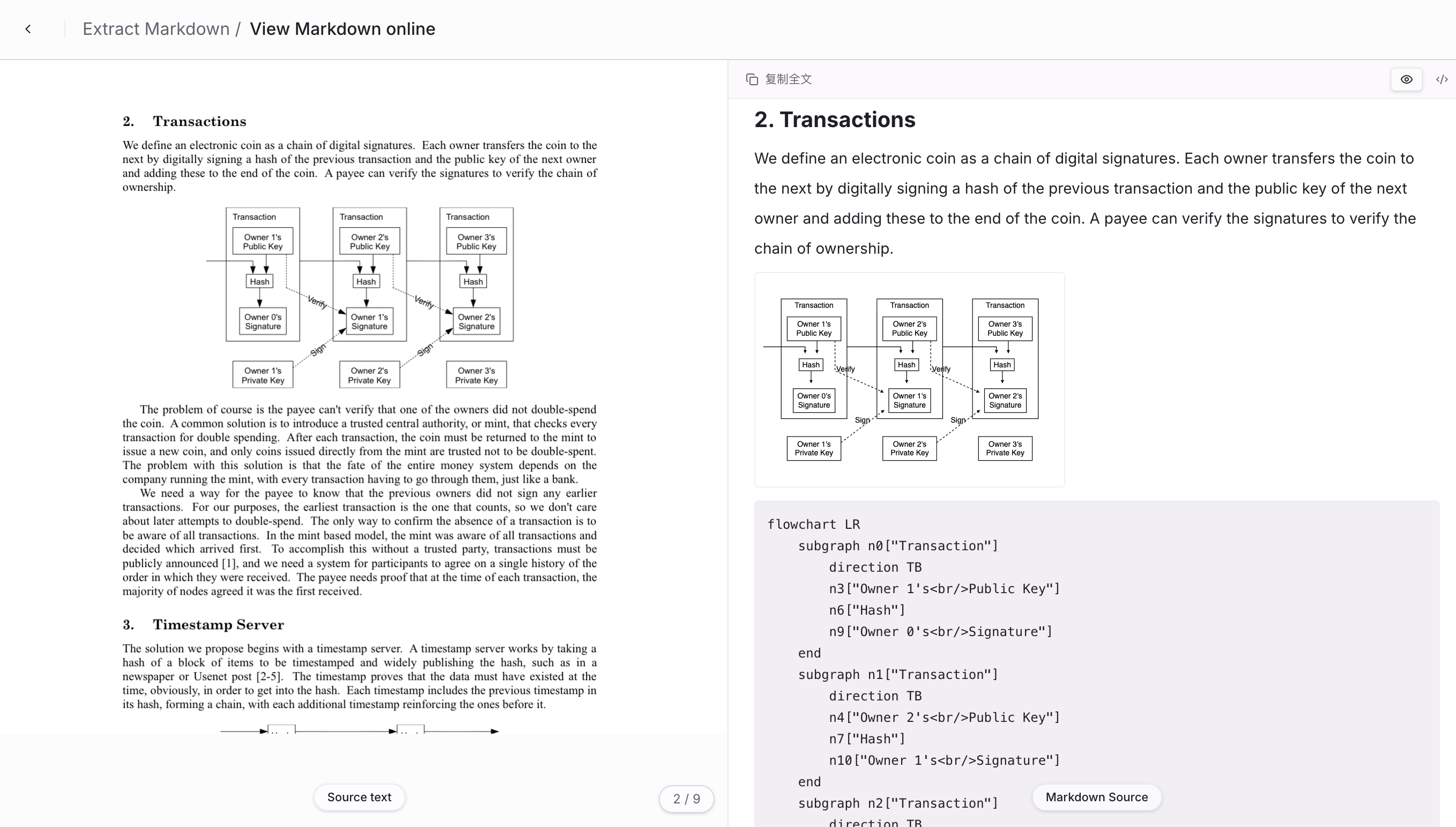
If you save and re-upload a DOCX, are the flowchart relationships still there?
When Word retains recognizable DrawingML shapes, SimplifyAI attempts to recover flow relationships from boxes, connectors, arrows, and text, then generates a Mermaid code block in the Markdown output.
This matters for document round trips. A common workflow is:
- Convert a PDF into a DOCX with editable graphics.
- Download the file, then save, review, or edit it in Word.
- Re-upload the DOCX and convert it to Markdown for a knowledge base.
The key point is that this step does not depend on the original PDF. If a user changes node labels or moves boxes in Word before re-uploading, the recovered diagram reflects the current document, not the original image. The exported Markdown uses relative paths to reference SVG files in the same deliverable, followed by the Mermaid code block, so both can move together into a knowledge base.
Current scope and limitations
Best suited for:
- DrawingML flowcharts made of rectangular nodes, connectors, arrows, and text labels.
- Editable Word graphics previously exported from SimplifyAI and uploaded again.
- Word technical documents that need to move into Markdown, RAG, or a knowledge base.
- Teams that need both a visual preview and machine-readable relationships.
May require human review or may not be recoverable:
- SmartArt, complex grouped objects, or specialized DrawingML created by third-party software.
- Flowcharts that are images only, with no editable shapes.
- Diagrams where connector endpoints are far from nodes or relationships are inherently unclear.
- Data charts, freeform illustrations, and scanned images—they should not be treated as Mermaid flowcharts.
- Floating graphics inside complex table cells, where output placement may need additional review.
The system prioritizes avoiding false positives, such as treating ordinary text boxes as flowcharts. When relationships cannot be recovered reliably, it should not invent incorrect connections just to generate Mermaid.
Practical workflow
- Upload a DOCX containing editable flowcharts.
- Select “Extract Markdown.”
- In the preview, check whether the SVG displays completely and whether node labels are not duplicated or scattered.
- Review the nodes, arrow directions, and connector labels in the Mermaid code block.
- Before importing into a knowledge base, manually spot-check two or three complex diagrams.
If the source file is still a PDF and you first need editable Word graphics, see Convert PDF Flowcharts to Editable Word. If the document mainly contains text and tables, see How to Convert DOCX to Markdown Without Losing Tables or Heading Structure.
Next step
Test with a Word document that contains a representative flowchart. For RAG use cases, whether Mermaid accurately represents node and arrow relationships often has a greater impact on retrieval and answer quality than whether the image simply looks good.